TABLE OF CONTENTS
- Confirm User Preset Location
- Fix Folder Permissions
- Disable OneDrive Sync
- Check Firewall / Antivirus Restrictions
- Reinstall the Plugin
Users may find that their saved presets do not appear in the preset browser, or only the Default preset is available.
In most cases:
- Presets exist on the system
- The plugin is reading the wrong location
- Or Windows permissions are blocking access
Confirm User Preset Location
User presets for the Classic Air plugins are saved in:
| Plugin | User Preset Location |
| Boom | C:\Program Files\Air Music Technology\Boom\Presets |
| DB-33 | C:\Program Files\Air Music Technology\DB-33\Presets\User |
| Hybrid 3 | C:\Program Files\Air Music Technology\Hybrid\Presets\User |
| Loom II | C:\Program Files\Air Music Technology\Loom\Presets\User |
| Mini Grand | C:\Program Files\Air Music Technology\Mini Grand\Presets\User |
| Strike | C:\ProgramData\AIR Music Technology\Strike\Settings C:\ProgramData\AIR Music Technology\Strike\Styles C:\ProgramData\AIR Music Technology\Strike\Kits C:\ProgramData\AIR Music Technology\Strike\Mixes |
| Structure 2 | No fixed default location. User selects save destination manually.* |
| The Riser | C:\Program Files\Air Music Technology\theRiser\Presets\User |
| Transfuser 2 | C:\ProgramData\AIR Music Technology\Transfuser\User Data\Presets |
| Vacuum Classic | C:\ProgramData\AIR Music Technology\Vacuum\Presets\User |
| Vacuum Pro | C:\Program Files\Air Music Technology\VacuumPro\Presets\User |
| Velvet | C:\Program Files\Air Music Technology\Velvet\Presets\User |
| Xpand!2 | C:\Program Files\Air Music Technology\Xpand!2\Presets\User |
| Creative FX Collection Plus | C:\Program Files (x86)\AIR Music Technology\[NAME OF PLUGIN]\Presets\User |
If Presets Are Found in Another Folder
If your preset files are located in the Documents folder or another backup location, but do not appear inside the plugin, you can move or copy them to the plugin’s preset directory.
- Open File Explorer.
- Navigate to the folder where the preset files are currently stored. (likely your Documents folder)
- Select the preset files or folders.
- Right-click and choose Copy.
- Navigate to the plugin preset folder (as listed above)
- Open the User folder
- Right-click inside the folder and choose Paste.
- Reopen your DAW or reload the plugin.
Your presets should now appear in the preset browser.
*Structure 2 Special Note
Unlike many AIR Music Tech plugins, Structure 2 does not use a dedicated default User Presets folder.
When saving Settings, Patches, or Parts, Structure 2 allows you to manually choose the save location each time. Because of this, missing user presets are often caused by files being saved to a different folder than expected, moved after saving, or stored on an unavailable external or cloud-synced drive.
If your saved presets are missing:
- Open Structure 2.
- Select the Browser tab within the plugin.

- Navigate to the folder where your presets were originally saved.
- Load the preset files directly from that location.
For best organization, we recommend saving presets to a dedicated and easy-to-find folder, or a regularly connected external drive used for audio content.
Fix Folder Permissions
In some cases, Windows may block the plugin from saving or reading presets in the Program Files directory.
If you see a permission error like this: 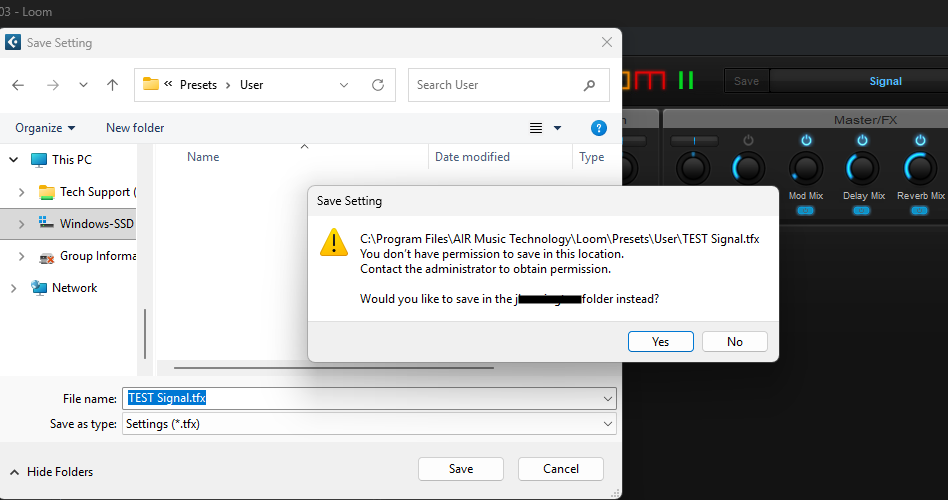
Follow these steps:
- Navigate to:
- C:\Program Files\AIR Music Technology\[PLUGIN NAME]\Presets
- Right-click the Presets folder (or plugin folder)
- Select Properties
- Go to the Security tab
- Click Edit
- Select your User account
- Enable:
- Read
- Write
- (Optional but recommended) Full Control
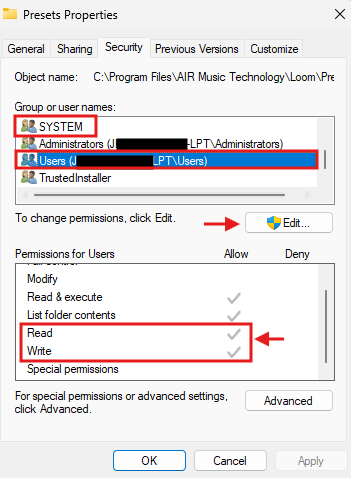
- Click Apply, then OK
After updating permissions:
- Relaunch your plugin
- Try saving a preset again
- Confirm the User category appears
Disable OneDrive Sync
If your Documents folder is synced with OneDrive, presets may not load correctly.
- Select the OneDrive cloud in your notification area to show the OneDrive pop-up.

- Select the OneDrive Help and Settings icon ⚙ then select Settings.
- Go to the Account tab.
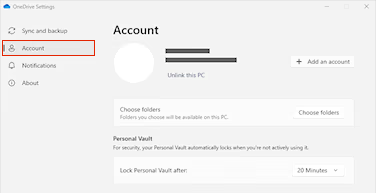
- Select Unlink this PC, and then select Unlink account.
Restart your system and test again.
Check Firewall / Antivirus Restrictions
Security software may block plugins from accessing preset folders.
Windows Defender Firewall
Ensure your DAW and plugin are allowed through the firewall. Windows manages app permissions here: App permissions on Windows 11
Third-Party Antivirus (AVAST, Norton, etc.)
Temporarily disable or uninstall the software (go to your third-party vpn's site for further guidance).
Ensure access is allowed for:
- Plugin install directory
- Documents preset folder
Reinstall the Plugin (If Needed)
If presets are still missing:
- Uninstall the plugin
- Use the Microsoft Install/Uninstall Troubleshooter, which can be used below:
- Use Microsoft’s uninstall tool to remove any broken entries:
- Download and open the Microsoft Troubleshooter here: Microsoft Install/Uninstall Repair Tool
- Select Uninstalling
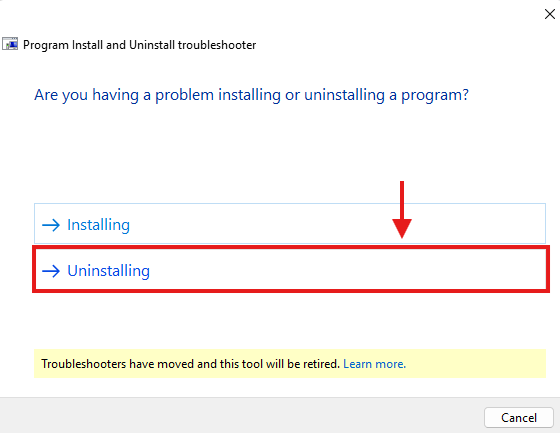
- Select the plugin content to remove from the list.
- Remove every entry of the plug-in:
- VST3
- Component
- Factory Content
- VST64
- Let the tool complete the cleanup process for each instance of the plug-in.
- Use Microsoft’s uninstall tool to remove any broken entries:
- Reinstall using the inMusic Software Center
- Restart your DAW
Was this article helpful?
That’s Great!
Thank you for your feedback
Sorry! We couldn't be helpful
Thank you for your feedback
Feedback sent
We appreciate your effort and will try to fix the article